Search The Web

Showing posts with label Windows 7. Show all posts

Thursday, June 6, 2013

How To Fix Windows Update Issues in Windows 8, 7, Vista, Server

How To Fix Windows Update Issues


Windows update can cause several issues, often leaving you with a cryptic error message such as 0x8024402c, 80070643, 8024800A or many others. Alternatively, you may also get an error like "Windows update cannot check for updates because the service is not running" . This article will go through how to troubleshoot Windows Update issues as a whole.Instructions for various specific issues such as those shown above can also be found on this site (just use the search feature to locate them).

Before making any changes to your system, please create a restore point or make a backup of any important work such as photos or documents. If you are unsure on how to create a restore point, please consult this Microsoft article: http://windows.microsoft.com/en-au/windows7/create-a-restore-point

How To Fix Windows Update Issues

Windows Update Fix It Tool

This tool is a great starting point for troubleshooting Windows Update and is highly successful in resolving a variety of issues. The Tool can be downloaded here: http://support.microsoft.com/mats/windows_update/ . At the time of writing there was no Windows 8 64 Bit version of this tool, hopefully Microsoft will make a version available in the near future.

Also available is The System Update Readiness tool, located here: http://windows.microsoft.com/en-au/windows7/what-is-the-system-update-readiness-tool . This tool will troubleshoot your system and solve any problems. The program is not very verbose, in that it doesn't really tell you what its doing, however it is effective in rectifying common Windows Update Issues.


Windows Update Log


For Those who wish to do further troubleshooting or if the above tools do not solve your issue, the Windows Update Log is a great place to start looking for clues as to what is going on. to access the log open a Run Command and type (or just copy from this blog) %Windir%\windowsupdate.log and press Enter. I have included a snippet from a log below:.

How To Fix Windows Update Issues

In this case, the log is displaying that error 0x800f0902 has occurred where Windows was unable to download updates. This is a fantastic starting point for further troubleshooting of issues that are occurring.

Windows Services

There are three main services involved with Windows Update, the Windows Update Service, Background Intelligent Transfer Service (BITS ) and the Workstation Service. If any of these are not started and running, Windows will be unable to apply updates.

To access the Windows Services open a Run Windows (Windows Key + R) and enter services.msc . This will open a Microsoft Management Console (MMC) showing Running Services.
How To Fix Windows Update Issues

For each of the above services check the following:
  1. Scroll down till you find the service (in this case Background Intelligent Update Service). as seen in the picture, the status should be Running and the Startup Type should be :
    • Automatic (Delayed Start) for the BITS service
    • Automatic for the Workstation Service
    • Manual (Trigger Start) for the Windows Update Service - (note that on some Windows 7 Systems it may also be set to Automatic Start)
  2. If the services are shut down, or not set to the appropriate start up type:
    • Double Click on the Service. This will open the Properties Window for the service
    • Change the Startup Type to the correct mode and /or click start to start the service
      How To Fix Windows Update Issues
  3. If the service will not start, then a good thing to do is run the above Fix It Tool or System Update Readiness Tool and see the results. failing that, consult the Windows Update log as also shown above.


Deleting Windows Update File Locations


If you have an update that will not successfully install (e.g. it repeatedly tries to install but fails when shutting down) or further investigation has suggested, it may be necessary to manually delete the files and folders containing Windows Update data and database. Please ensure that you have backed up any data or created a restore point before deleting any files

Note that before doing this you may need to stop with Windows Update Service. - see above for instructions on how to locate the service. once found double click the service to expose the properties window and choose stop. After you can either reboot to start the service or double click and choose start

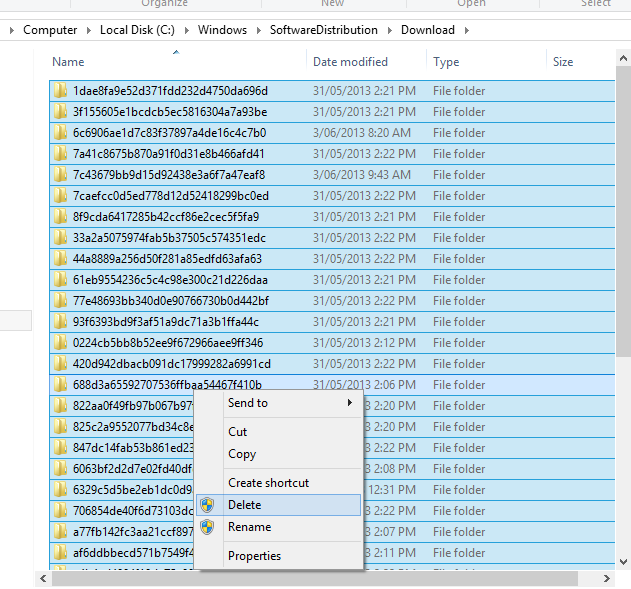
The Windows Update download location can be found at C:\Windows\SoftwareDistribution\Download . This is the repository where windows stores downloaded updates.
How To Fix Windows Update Issues

Its normally OK to delete these files as they are just the installers, not the actual applied updates. To delete these , click on the window, and press Control and A . This will highlight all the items in the screen. Right Click and choose Delete. answer YES to any verifcation prompts.
How To Fix Windows Update Issues

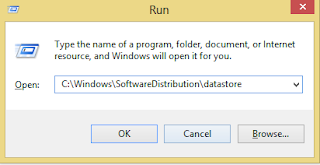
The Windows Update Download location is found at C:\Windows\SoftwareDistribution\datastore . 
How To Fix Windows Update Issues

This is the actual location of the Windows Update Database. if this database is corrupted then it may be easiest to delete it. Windows should create a new database automatically. To delete the database, open the location above click on the window, and press Control and A . This will highlight all the items in the screen. Right Click and choose Delete. answer YES to any verification prompts.
How To Fix Windows Update Issues

Uninstall Windows Updates


Occasionally you will installa n update that may not play nice with your system due to incompatibility with other installed programs, a failed install or occasionally an update that is not functioning as Microsoft intended. to remove these updates:
  1. Open Control Panel
    • In Windows 7 / Vista / 2008 go to Start -> Control Panel
    • In Windows 8, or Server 2012 go to the Start Screen  and type Control Panel. this will bing up the control Panel Icon. Choose this Icon
      How To Fix Windows Update Issues
  2. Select to view by Small Icons (Optional) then choose Programs and Features
    How To Fix Windows Update Issues
  3. in the left hand corner, select View Installed Updates
    How To Fix Windows Update Issues
    How To Fix Windows Update Issues

From this location you can uninstall any updates that you are having problems with. The trick here is to know which update you are looking for that is causing you a problem. This may be identified by either the Windows Update Log (see above), Windows Event Viewer, personal observation or other knowledge base searches.


This article has discussed various ways of troubleshooting Windows Update problems and how to resolve them.


Monday, May 27, 2013

Windows Update Error 0x8024402C in Windows 7, 8, 2012, 2008 R2, Vista

Windows Update Error 0x8024402C in Windows 7, 8, 2012, 2008 R2, Vista


Windows Update Error 0x8024402C occurs when running windows update and you try to connect to the Windows or Microsoft Update Website.

Please see this post for an overview of how to troubleshoot Windows Updates: How to Troubleshoot Windows Update Issues

if you view the logs located at: %windir%\windowsupdate.log you may also see this error present like this:

FATAL: SelfUpdate check failed, err = 0x8024402C
2013-05-11 11:41:27:095 1208 2344 Agent  * WARNING: Skipping scan, self-update check returned 0x8024402C
2013-05-11 11:41:27:095 1208 2344 Agent  * WARNING: Exit code = 0x8024402C


This issue is commonly caused by Firewall Settings not being correctly set within Internet Explorer. There are 3 ways in which you can attempt to correct this error:

Method 1:

Download and run the Microsoft Windows Update Readiness Tool located at: http://support.microsoft.com/kb/947821 . If this fails to solve the issue then please try one of the other methods.

Method 2:

This Method is for if you ar ein a corporation or campus that uses a Proxy Server.
  1. Open Internet Explorer and go to Tools -> Internet Options
    Windows Update Error 0x8024402C
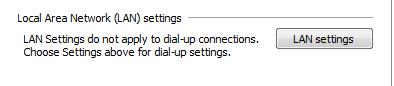
  2. Click on the Connections Tab, select LAN Settings and choose OK
    Windows Update Error 0x8024402CWindows Update Error 0x8024402C
  3. Choose the Advanced Button
  4. Clear any entries under the exceptions window and choose OK
    Windows Update Error 0x8024402C
  5. Open a command prompt:
    1. In Windows 7, Vista, 2008 either:
      1. Go to start  chose run and type in cmd and press OK . Or:
      2. Type command prompt into the search bar in the start menu
        Windows Update Error 0x8024402C
    2. In Windows 8 
      1. Go to the Start Screen and type command prompt. This will open a search screen where you can then select command prompt from the right hand side
        Windows Update Error 0x8024402C
  6. in the command prompt window, enter the following pressing Enter After each command
    1. netsh winhttp reset proxy
    2. net stop wuauserv
    3. net start wuauserv
      Windows Update Error 0x8024402C
  7. restart the computer and try and install updates again
Method 3:
  1. Open Internet Explorer
    Windows Update Error 0x8024402C
  2. Go to Tools -> Internet Options
    Windows Update Error 0x8024402C
  3. Click on Connections -> LAN Settings
    Windows Update Error 0x8024402C

    Windows Update Error 0x8024402C
  4. Select Automatically Detect Settings 
    Windows Update Error 0x8024402C
  5. Choose OK
  6. close and re open Internet Explorer and try installing updates again.


Tuesday, May 14, 2013

Allow Remote Desktop or Remote Assistance Connections through Windows Firewall


Allow Remote Desktop or Remote Assistance Connections through Windows Firewall

To Connect to a remote session, the receiving computer must be able to communicate with your computer. In order to do this, you or the administrator may need to open a port in the firewall to allow this connection to happen. This is a common pain point and something that many administrators forget to do from time to time! When you choose to Enable a remote desktop Connection, the system may do this for you, however this is not always the case. Luckily, its quite simple to allow a remote desktop connection through the Windows Firewall:
  1. Open Control Panel and Choose Windows Firewall
  2. In the top left hand corner choose Allow a program or Feature through Windows Firewall
  3. you are now presented with a list of programs. Scroll down to R where you will see 3 options pertaining to Remote Desktop / Assistance:
    1. Remote Desktop - Choose this to allow remote Desktop Services
    2. Remote Assistance - Choose this to allow shared screen remote assistance to your machine
    3. Remote Desktop - Remote FX - this is a Windows 7 Service Pack 1 / Server 2008 R2 and later feature that provides a rich desktop experience for features like sound and graphics.
  4. Choose the options pertaining to you by ticking the box in the connections you will allow this for ( Domain, Home / Work, Public)
  5. Choose OK
  6. you have now allowed remote desktop and / or remote assistance connections to your computer. to disable this, just un tick the boxes you have ticked in the firewall.

To Connect to a Remote Desktop Computer


To Connect to a Remote Desktop Computer

  1. To open a remote desktop connection, either:
    1. go to Start then Run and enter mstsc and press OK
    2. go to Start, All Programs, Accessories, Remote Desktop Connection
    3. In the Computer field, enter the Computer Name or IP Address of the computer you wish to connect to. If you are unsure of what this is, a few simple ways to find out are (these are done on the remote computer)
      1. ask your administrator / help desk / remote desktop provider for the address needed
      2. Open a Run Command (go to Start and Run or Windows Key + r), enter ipconfig  and look for the IPAddress field. you may need to scroll up to see this. you may also, depending on the configuration have a couple to choose from.
      3. open a Run Command (start and Run or Windows Key + r) and when presented with the black DOS screen, enter hostname. This is the name of the computer.
    4. You can chose the Options button to set parameters such as connection profile, display properties, whether to run specified programs, connection bandwidth and more, however this is optional
    5. choosing Connect will initiate the connection.
    6. you may be prompted for the log in credentials of a user on the remote machine that is allowed connection, enter these details here.
    7. You should now have established a remote desktop connection to another computer

Enable a Remote Desktop Connection


Enable a Remote Desktop Connection

Remote Desktop allows you to connect to a computer over a network and utilize it as if you were sitting in front of it at the terminal. This is different to Remote Assistance which is a shared interactive experience used primarily for support purposes. In most versions of windows clients, only a single user may connect at a given time to a computer. This is different in Server installations, where a maximum of 2 remote connections are Nativity supported, and Terminal Servers where hundreds to thousands of remote clients can be supported. To enable Remote Desktop in a Windows Client:

  1. Open Control Panel, then navigate to System choose Advanced System Settings and choose the Remote tab
  2. In the second half of the page, you see Remote Desktop and have 3 options, choose the 1 most relevant to you. Choosing option 2 will be the most "user friendly" solution. If in doubt, consult your organisations security policy.
    1. Dont Allow Connections to This Computer - This prevents all users from establishing a remote desktop connection with your computer. This is the most secure setting.
    2. Allow connections from computers running any version of remote desktop - This setting is the most generic, and most commonly used. It allows almost all Windows based remote desktop clients to Connect
    3. Allow connections only from computers running Remote Desktop with Network Level Authentication - This setting means that only computer that have Network Level Authentication enabled will be able to connect. This setting is most common in well structured corporate environments
  3. Choose Select Users. Here you enter the users that you want to have access to your computer. The user currently logged in is normally automatically added, as are Domain Administrators in a network Environment. Choose the user / group that you would like to have access and choose OK  and OK again to exit
  4. you have now enabled remote desktop on your computer. please note that you may need to open a firewall rule in order to access the desktop remotely. 

Enable a Remote Assistance Connection


Enable a Remote Assistance Connection

Remote Assistance will allow select individuals (those that you or your organisation allows)  to connect to your computer to collaborate or solve issues that you may be experiencing. This is an interactive experience in contrast to Remote Desktop, which forms a remote terminal style connection with an individual user having sole control of the desktop environment. To Enable Remote Assistance you:
  1. Open Control Panel, then navigate to System choose Advanced System Settings and choose the Remote tab
  2. At the top of the page, you will see Remote Assistance. Tick the box  Allow Remote Assistance Connections to this computer then click apply. 
  3. Choose the Advanced Button.
  4. If you want to allow your computer to be able to be controlled remotely then tick the box Allow this computer to be controlled remotely
  5. The Invitations box allows you to choose the amount of time a remote assistance request remains valid. For Security reasons, its better to keep this number shorter than longer.
  6. Choose OK
  7. you have now enabled remote assistance on your desktop. Please note that you may also need to open a port in your firewall to allow these connections through. 

Set up Remote Desktop Connection in Windows

Set up Remote Desktop Connection in Windows


Remote Desktop Connections allow you to connect to a computer from another, and interact with the desktop and installed software as if you were sitting in front of the remote computer. This article will show you a few ways to enable this in both Windows 7 and Windows 8

Enable a Remote Assistance Connection

Remote Assistance will allow select individuals (those that you or your organisation allows)  to connect to your computer to collaborate or solve issues that you may be experiencing. This is an interactive experience in contrast to Remote Desktop, which forms a remote terminal style connection with an individual user having sole control of the desktop environment. To Enable Remote Assistance you:
  1. Open Control Panel, then navigate to System choose Advanced System Settings and choose the Remote tab
  2. At the top of the page, you will see Remote Assistance. Tick the box  Allow Remote Assistance Connections to this computer then click apply. 
  3. Choose the Advanced Button.
  4. If you want to allow your computer to be able to be controlled remotely then tick the box Allow this computer to be controlled remotely
  5. The Invitations box allows you to choose the amount of time a remote assistance request remains valid. For Security reasons, its better to keep this number shorter than longer.
  6. Choose OK
  7. you have now enabled remote assistance on your desktop. Please note that you may also need to open a port in your firewall to allow these connections through. For information on how to do so, click here:

Enable a Remote Desktop Connection

Remote Desktop allows you to connect to a computer over a network and utilize it as if you were sitting in front of it at the terminal. This is different to Remote Assistance which is a shared interactive experience used primarily for support purposes. In most versions of windows clients, only a single user may connect at a given time to a computer. This is different in Server installations, where a maximum of 2 remote connections are Nativity supported, and Terminal Servers where hundreds to thousands of remote clients can be supported. To enable Remote Desktop in a Windows Client:

  1. Open Control Panel, then navigate to System choose Advanced System Settings and choose the Remote tab
  2. In the second half of the page, you see Remote Desktop and have 3 options, choose the 1 most relevant to you. Choosing option 2 will be the most "user friendly" solution. If in doubt, consult your organisations security policy.
    1. Dont Allow Connections to This Computer - This prevents all users from establishing a remote desktop connection with your computer. This is the most secure setting.
    2. Allow connections from computers running any version of remote desktop - This setting is the most generic, and most commonly used. It allows almost all Windows based remote desktop clients to Connect
    3. Allow connections only from computers running Remote Desktop with Network Level Authentication - This setting means that only computer that have Network Level Authentication enabled will be able to connect. This setting is most common in well structured corporate environments
  3. Choose Select Users. Here you enter the users that you want to have access to your computer. The user currently logged in is normally automatically added, as are Domain Administrators in a network Environment. Choose the user / group that you would like to have access and choose OK  and OK again to exit
  4. you have now enabled remote desktop on your computer. please note that you may need to open a firewall rule in order to access the desktop remotely. for information on how to do so, click here: 

To Connect to a Remote Desktop Computer

  1. To open a remote desktop connection, either:
    1. go to Start then Run and enter mstsc and press OK
    2. go to Start, All Programs, Accessories, Remote Desktop Connection
    3. In the Computer field, enter the Computer Name or IP Address of the computer you wish to connect to. If you are unsure of what this is, a few simple ways to find out are (these are done on the remote computer)
      1. ask your administrator / help desk / remote desktop provider for the address needed
      2. Open a Run Command (go to Start and Run or Windows Key + r), enter ipconfig  and look for the IPAddress field. you may need to scroll up to see this. you may also, depending on the configuration have a couple to choose from.
      3. open a Run Command (start and Run or Windows Key + r) and when presented with the black DOS screen, enter hostname. This is the name of the computer.
    4. You can chose the Options button to set parameters such as connection profile, display properties, whether to run specified programs, connection bandwidth and more, however this is optional
    5. choosing Connect will initiate the connection.
    6. you may be prompted for the log in credentials of a user on the remote machine that is allowed connection, enter these details here.
    7. You should now have established a remote desktop connection to another computer

Allow Remote Desktop or Remote Assistance Connections through Windows Firewall

To Connect to a remote session, the receiving computer must be able to communicate with your computer. In order to do this, you or the administrator may need to open a port in the firewall to allow this connection to happen. This is a common pain point and something that many administrators forget to do from time to time! When you choose to Enable a remote desktop Connection, the system may do this for you, however this is not always the case. Luckily, its quite simple to allow a remote desktop connection through the Windows Firewall:
  1. Open Control Panel and Choose Windows Firewall
  2. In the top left hand corner choose Allow a program or Feature through Windows Firewall
  3. you are now presented with a list of programs. Scroll down to R where you will see 3 options pertaining to Remote Desktop / Assistance:
    1. Remote Desktop - Choose this to allow remote Desktop Services
    2. Remote Assistance - Choose this to allow shared screen remote assistance to your machine
    3. Remote Desktop - Remote FX - this is a Windows 7 Service Pack 1 / Server 2008 R2 and later feature that provides a rich desktop experience for features like sound and graphics.
  4. Choose the options pertaining to you by ticking the box in the connections you will allow this for ( Domain, Home / Work, Public)
  5. Choose OK
  6. you have now allowed remote desktop and / or remote assistance connections to your computer. to disable this, just un tick the boxes you have ticked in the firewall.


Wednesday, May 1, 2013

Remove Burn Button in Windows Explorer

Remove Burn Button in Windows Explorer


You may want to remove the Burn button in Windows Explorer for a variety of reasons including security ( not allowing staff to burn in a secure Windows Environment) through to the fact that it just gets in the road. The Burn icon in Windows Explorer is shown below:

Remove Burn Button in Windows Explorer


The good news is that its very easy to remove with some knowledge on how to manipulate the registry.

  1. open the start menu and enter regedit either in the search bar of Windows 7 or just type it into the start menu on Windows 8. 
  2. Browse to HKEY_CURRENT_USER\Software\Microsoft\Windows\CurrentVersion\Policies\Explorer .
  3. right click in the white pace in the right hand window and choose new then Dword
    Remove Burn Button in Windows Explorer
  4. name the dword NoCdBurning and set the Value to 1
    Remove Burn Button in Windows Explorer
  5. Close the registry editor and restart the computer.
The above article details how to remove the Burn icon from Windows Explorer.

Tuesday, April 23, 2013

How to Delete Windows.old files in Windows 8 and Windows 7

How to Delete Windows.old files in Windows 8 and Windows 7

The Windows.old file is created when you perform an upgrade to Windows 8, perform a refresh, or perform an installation where you don't reformat the drive prior to installation (i.e you are installing Windows 8 onto the same partition as Windows 7).

In instances where you have done an upgrade on an upgrade (e.g. from Vista to Windows 7 and then again to Windows 8 you may also may have a Windows.old.000 folder present. this is the older installation data.

Having these files can eat up a lot of room, especially on smaller laptop SSD drives. in this article, we show you how to remove these folders.

Some of the methods listed below will also be applicable for deleting the Windows.old file in Windows 7 as well

NOTE: before deleting any files or folders, you need to ensure that you no longer need any files or folders located in this location. If in doubt you must back this up to external storage.


Method 1:
Deleting from the Command Prompt


This method is very straight forward and can be scripted for situations that invlove upgrades in an organisation.

1. Open an elevated administrator command prompt
2. To delete the folder, enter or copy the following command into the command prompt window:
RD /S /Q %SystemDrive%\windows.old
How to Delete Windows.old files in Windows 8 and Windows 7


3. For a Windows.old.000 folder then repeat the above with the Windows.old replaced with Windows.old.000


Method 2:Disk Cleanup


Disk Cleanup can be used to delete the Windows.old folder. To do so:

1. Open disk cleanup (either Open Computer, right click on C: choose properties and then disk cleanup or type cleanmgr into a run command)
2. If you have more than 1 drive letter available  you will be asked to choose the drive you with to cleanup. Choose C: as the drive to cleanup
How to Delete Windows.old files in Windows 8 and Windows 7


3. In the lower left hand corner, you will see an icon labeled "clean up system files", choose this.


4. You may be prompted by UAC, choose Ok. you may need to repeat step 2.
5. In the disk cleanup menu, scroll to previous Windows installations, and then tick this box. choose OK to continue. This will mark the Windows.old file for deletion.
How to Delete Windows.old files in Windows 8 and Windows 7


6. If prompted as to if you would like to delete these files, choose delete files
How to Delete Windows.old files in Windows 8 and Windows 7


7. this will now delete the windows.old file.


This article discussed how to remove Windows.old and windows.old.000 from Windows 8 and also Windows 7

Saturday, April 13, 2013

Set Desktop Background via Group Policy in Windows 7, Windows 8 in a Server 2008 or Server 2012 Domain

Set Desktop Background via Group Policy in Windows 7, Windows 8 in a Server 2008 or Server 2012 Domain


Setting the desktop background for all machines in the domain is easy, and also normally a requirement for machine identification / standardization in a work environment. This article will cover setting for all machines in the domain, however if you wanted to apply to only a certain group of machines you could create a separate policy and apply it to the OU of your choice.

The process for setting the desktop background is as follows:


1. Type \\domain.local\sysvol in the start menu search bar and hit enter
2. Place your BMP or JPG file in that folder
3. Open the start menu and type gpedit in the search bar
4. Right click on the default domain policy and navigate to User Configuration\Administrative Templates\Desktop\Desktop Top\Desktop Wallpaper and set the setting the the JPG you moved to the SYSVOL folder
5. Enable the Prevent Changes policy in that same location
6. Run a GPUPDATE/FORCE on one of the machines, log off and then log back in to test it.

This Article can also be found on our sister site DizzyIT.com at http://dizzyit.com/2013/04/14/set-desktop-background-group-policy-windows-7-windows-8-server-2008-server-2012-domain/

Tuesday, April 9, 2013

Windows Update Cannot Check For Updates Because The Service Is Not Running


Windows Update Cannot Check For Updates, Because The Service Is Not Running
This error occurs when trying to install Windows Updates. As the name suggests the service is not running, hence the machine cannot check for updates.

 There are several reasons why this may be the case, including service corruption, virus's or even the simple case that the service has been shut down manually or disabled. To Fix this issue:


Windows 8:

1.  Type CMD on the start screen, or in Windows Search, or run command ( can be opened by holding Windows Key and R togeather)


2.  at the prompt, type in net start bits . This starts the Background Intelligent Transfer System (BITS) which is responsible for downlaoding and uploading data between a client and server
3. type in net start wuauserv . This will start the Windows update Service itself.
4. Try Windows update and see if this has solved your issues
Windows 7  /  Vista / XP

1.Click Start and Type Run (or press Windows Key and R together)
2.in the text box named open,  type in cmd (alternativley you can type cmd into the seach box in Windows 7).
3.  at the prompt, type in net start bits . This starts the Background Intelligent Transfer System (BITS) which is responsible for downlaoding and uploading data between a client and server
4. type in net start wuauserv . This will start the Windows update Service itself
5.Try Windows update again and see if this has solved your issue.
A Tool is Also Available from Microsoft to accomplish this task:


Saturday, April 6, 2013

Windows Update Error 8024800A in Windows 8, Windows 7, Vista, Server 2008 and 2008 R2

Windows Update Error 8024800A in Windows 8, Windows 7, Vista, Server 2008 and 2008 R2


If you receive Error 8024800A occurs when a windows update there are a few things you can do to resolve the issue.

 Note: Please see this post for ways to troubleshoot Windows Update Issues including 8024800A : How to Troubleshoot Windows Update Issues

Observing Windows update logs are a great place to start and can give you some insite into whats happening in the background. These logs are located at: %windir%\Windowsupdate.log . Google searching the error codes in this log will help solve a large percentage of the issues listed.

Next, run the Windows Update Readiness Tool, located here: http://support.microsoft.com/kb/947821 .
Make sure that you choose the appropriate version for both Windows Version and for 32 or 64 Bit. A reboot may be required at the conclusion of this process.

This Article can also be located on our sister site DizzyIT.com at http://dizzyit.com/2013/04/06/view-desktop-blank-desktop-apple-mac/


Saturday, March 30, 2013

Remove Network Printers from Command Line or Script


Remove Network Printers from Command Line or Script


There are several options when it comes to removing printers via command line / script.The first option is to use the "rundll32 printui.dll" method. For this, open a command prompt and type:

rundll32 printui.dll,PrintUIEntry /dn /n \\printsvr\printername

if you want the operation to be silent, then use the /q switch at the end. this is especially useful if you have multiple printers that you want to remove via a batch file and/or if you are unsure if the printers are installed on the end users machines. If the printer is not currently installed and you attempt to remove it without the /q switch then you will receive an error. The figure below shows the command in its entirety:
Remove Network Printers from Command Line or Script
The next method would be to use a VB script such as this :
to make the script work, just replace the \\PRINTSERVER\PRINTERNAME" field with the details of your network printer and save as a .vbs file. to call the script just open up an administrator command prompt and type in " cscript scriptname.vbs " where scriptname is the name of your script.
To delete more printers just another line to the  " Dim sPrinterName "  lines with the printer number at the end, and then again  add another objNetwork.RemovePrinterConnection sPrinterName2, True, True line that reflects the printer number you just added.
Likewise, to remove only one printer just remove one of the above lines.


Option Explicit

  Dim objNetwork, objPrinters

  Set objNetwork = CreateObject("WScript.Network")
  Set objPrinters = objNetwork.EnumPrinterConnections

  ' ### Delete selected network printer

  Dim sPrinterName1
 Dim sPrinterName2
  sPrinterName1 = "\\PRINTSERVER\PRINTERNAME"
 sPrinterName2 = "\\PRINTSERVER\PRINTERNAME"
  objNetwork.RemovePrinterConnection sPrinterName1, True, True
 objNetwork.RemovePrinterConnection sPrinterName2, True, True

I found with this method however that it will error out if that printer does not exist. im not enough of a VB guru to tell you if its possible to quieten it down to run silently.

When all is said and done, there is a much better way of doing this, and that is with Group Policy Preferences. this gives you centralized control over your printer environments, allowing you to add and remove and update printers for small groups or your entire organisation.
Group Policy Preferences will be covered for printers in an upcoming entry.
This article can also be found on our You Tube Channel:


Sunday, March 17, 2013

Un install / Reset TCPIP stack in Windows Server, 8, 7, Vista, XP

Un install / Reset TCPIP stack in Windows Server, 8, 7, Vista, XP


by Graham Regan
In earlier versions of Windows (2000 and before) it was possible to remove and re install TCP/IP in Windows if there was a corruption / issue. this was done from add remove programs.
From Windows XP onwards, TCP/IP became a core component of Windows and cannot be removed. Instead, net shell is used to reset the stack.
The command to do this is (from the command prompt)
netsh int reset
e.g. netsh int reset c:\resetlog.txt
A reboot is then needed to complete the process.
the log file path is for logging the reset process  and can be used to troubleshoot / confirm that the reset has been performed correctly.
This command resets two registry keys, which has the same effect of removing and re installing the TCP/IP stack.
The registry key effected are:
system\currentcontrolset\services\tcpip\parameters and system\currentcontrolset\services\dhcp\parameters .


Monday, March 4, 2013

PowerShell - Set Execution Policy - Files Could not be Loaded because the running of scripts is disabled on this system.

PowerShell - Set Execution Policy -  Files Could not be Loaded because the running of scripts is disabled on this system.


when using PowerShell you may get an error stating that " Files Could not be Loaded because the running of scripts is disabled on this system. Please provide a valid certificate with which to sign the files" as shown below:


This at a basic level means that your security settings in PowerShell are preventing you from running the script ( the execution policy.

To fix this, you need to set the execution policy to a more relaxed setting. these are as follows:

  • Restricted - No Scripts can be run. Windows PowerShell can only be used in interactive mode.
  • All Signed - Only Scripts signed by a trusted publisher can be run
  • RemoteSigned - Downloaded scripts must be signed by a trusted publisher before they can be run
  • Unrestricted - No Restrictions, any PowerShell script can be run
At the time of writing, PowerShell comes out of the box in restricted mode.

To check which execution policy your system is running type Get-ExecutionPolicy


To change to policy you type Set-Execution Policy . When you run and go to a less secure setting, you will get a large warning asking if you want to do so
e.g. Set-ExecutionPolicy RemoteSigned.


It's not recommended to use unsigned as this would allow anyone who accesses the system to run malicious or damaging code on your system. Most individuals will settle on Remote Signed, however before doing so in an organisation please ensure that this complies with your organisations security settings.

for a video walk through of this, please check this youtube video from our sister site www.dizzyit.com . The article can also be located there.


Monday, May 14, 2012

Opening a window in full screen mode in a batch file


Opening a window in full screen mode in a batch file


this can be done using the start /max statement at the start of the command.in context this can be used to open an IE window in full screen for portal access or similar.


start /max "%programfiles%\internet explorer\iexplore.exe" http://www.dizzyit.com

 the same can be used to start in minimized mode with start /min

Sunday, March 11, 2012

stop and start network adapters in a batch file or DOS using netsh

Stop and Start Network Adapters in a Batch File or DOS using netsh.


Sometimes you may want to stop and start network adapters from a command line. This is especially true for when you want to use them in a DOS batch file.
To do this we are going to use Net Shell (netsh) which is a powerful command line based tool for managing network properties. net shells capabilities extend far beyond what we are doing here and i encourage you to investigate this further. To get a list of commands try typing " netsh /? " at a command line
netsh /? to display a list of net shell options
Firstly you will want to find the name of the adapter. to do this, open Network and Sharing Center (in Win 7 and Vista) and choose Change adapter settings. Typically, the a LAN connection is named " Local Area Connection " and a wireless connection is named " Wireless Network Connection " . This can also be discerned from looking at an ipconfig read out, where for a LAN connection is will say Ethernet Adapter Local Area Connection " . if doing this remember to drop the Ethernet adapter portion of the name.
Another way to find the name is to open a DOS command and enter netsh interface show interface. The name listed in the interface name is the name of the connection. In this case was are focusing on the Wireless Network Connection
Use netsh interface  show interface  to show interface name in dos / powershell
Use netsh interface show interface to show interface name in dos / powershell
For this example we will use a wireless network adapter with the default name of "Wireless Network Connection"
The command to disable this connection is:
netsh interface set interface "Wireless Network Connection" DISABLE
netsh interface set interface " name" enable to enable interface in dos / powershell
to enable the adapter again, the command is:
netsh interface set interface "Wireless Network Connection" ENABLE
netsh interface set interface "<name>" enable to enable network interface is dos / powershell
netsh interface set interface "" enable to enable network interface is dos / powershell
as you can see, this would be really easy to put in a batch file to put in a start up or deploy in other methods.
for a video tutorial on this, please check the youtube video below:


This post can also be located at our sister site www.dizzyit.com at: http://wp.me/p1Zlmi-1u