Search The Web

Showing posts with label 2012. Show all posts

Wednesday, March 25, 2015

DHCP Admin Group in Server 2012

DHCP Admin Group in Server 2012

The DHCP admin group is a Windows security group used to provide DHCP admin access to users who need to perform DHCP admin function in their work role(s). The sister group, DHCP Users provides read only membership to see DHCP information.

In Server 2012, Microsoft disabled the DHCP users group and hid it from view. This can be a bit frustrating if you need to use this group! The reason I believe was that Microsoft considered this to be a more secure arrangement.

Re establishing the DHCP Admin and DHCP user groups is rather simple. On the Server, open an administrative command prompt and enter: netsh dhcp add securitygroups then press enter. This will add both groups to your group management console (you may need to refresh to see them)

This article can also be found on our sister site Dizzyit.com at: http://dizzyit.com/2015/03/26/dhcp-admin-group-in-server-2012/
Adding DHCP Admin and User Groups

Adding DHCP Admin and User Groups

Tuesday, November 26, 2013

Installing and Upgrading to Microsoft Server 2012 - Considerations

Installing and Upgrading to Microsoft Server - Considerations


There are several considerations to take into account when upgrading to Server 2012. This article is not so much a how to on how to perform an upgrade, but more a guide on some tips and strategies that can be used to make the move easier for you and your organisation.

Upgrade or Fresh Install?

Server 2012 is the first Microsoft Windows Server that allows you to perform an upgrade instead of needing to perform a fresh install. To be eligible for this feature, the existing operating system needs to be Server 2008 or 2008 R2, both 64 bit.
Also for consideration is if the hosted services and applications on that server are capable of handling an upgrade. For this its best to contact the provider or manufacturer directly. In some cases, it may be possible to test this, especially if you have a relevant test environment. Serious consideration needs to be given to Active Directory and also Microsoft SQL server implementations.Other services that need intense considerations include Federated Services and MS Clustering. Microsoft produces several guidelines that can be obtained on their website and are updated regularly.

These reports an be exported as a Word doc and then provided to relevant managers or seniors for approval.

Planning an Implementation

There are several considerations when planning a Server 2012 deployment as follows:

Practice Makes Perfect

Be sure to test the installation in a VM and be familiar with the processes and what you need. There are several free / cheap hypervisors availiable today including VMWare  Workstation as well as Microsoft Hyper V Server. a trial copy of Windows Server 2012 can be downloaded from the Microsoft Website

Preparing for installation

Microsoft Produces the MAP toolkit as a means to verify (in some detail) whether existing systems are a good candidate for upgrade, and if not why not. This is a free downloaded from Microsoft and can be accessed from here : http://technet.microsoft.com/en-us/library/bb977556.aspx

Beyond the MAP toolkit you will want to be sure that the hardware proposed at least meets the minimum requirements for handling Server 2012. Ideally you will have hardware that exceeds these requirements and also satisfies the requirements for the applications that are to be hosted on the server. A the time of writing the min requirements are:
  • CPU - 1.4 GHz 64 Bit
  • RAM - 512 MB
  • Disk Space - 32 GB
Timing is everything - if you are performing an upgrade make sure that you are doing so in a time that is acceptable to business (perhaps a dedicated maintenance window). taking a system off line in production is not going to make a lot of people happy. Also make sure that you have an up to date and verified backup of any systems that you are tinkering with.

Mass Storage (and other) Drivers

Server 2012 requires digitally signed drivers, and non signed drivers can cause issues in setup. To aleviate this, you can disable this requirement by: Pressing F8 at Startup -> Advanced Boot Options -> Disable Driver Signature Enforcement -> load windows and install driver

F6 is pressed during installation to enable installation of mass storage drivers during install. these may be needed for RAID and other associated disk devices.


Monday, May 27, 2013

Windows Update Error 0x8024402C in Windows 7, 8, 2012, 2008 R2, Vista

Windows Update Error 0x8024402C in Windows 7, 8, 2012, 2008 R2, Vista


Windows Update Error 0x8024402C occurs when running windows update and you try to connect to the Windows or Microsoft Update Website.

Please see this post for an overview of how to troubleshoot Windows Updates: How to Troubleshoot Windows Update Issues

if you view the logs located at: %windir%\windowsupdate.log you may also see this error present like this:

FATAL: SelfUpdate check failed, err = 0x8024402C
2013-05-11 11:41:27:095 1208 2344 Agent  * WARNING: Skipping scan, self-update check returned 0x8024402C
2013-05-11 11:41:27:095 1208 2344 Agent  * WARNING: Exit code = 0x8024402C


This issue is commonly caused by Firewall Settings not being correctly set within Internet Explorer. There are 3 ways in which you can attempt to correct this error:

Method 1:

Download and run the Microsoft Windows Update Readiness Tool located at: http://support.microsoft.com/kb/947821 . If this fails to solve the issue then please try one of the other methods.

Method 2:

This Method is for if you ar ein a corporation or campus that uses a Proxy Server.
  1. Open Internet Explorer and go to Tools -> Internet Options
    Windows Update Error 0x8024402C
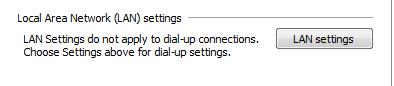
  2. Click on the Connections Tab, select LAN Settings and choose OK
    Windows Update Error 0x8024402CWindows Update Error 0x8024402C
  3. Choose the Advanced Button
  4. Clear any entries under the exceptions window and choose OK
    Windows Update Error 0x8024402C
  5. Open a command prompt:
    1. In Windows 7, Vista, 2008 either:
      1. Go to start  chose run and type in cmd and press OK . Or:
      2. Type command prompt into the search bar in the start menu
        Windows Update Error 0x8024402C
    2. In Windows 8 
      1. Go to the Start Screen and type command prompt. This will open a search screen where you can then select command prompt from the right hand side
        Windows Update Error 0x8024402C
  6. in the command prompt window, enter the following pressing Enter After each command
    1. netsh winhttp reset proxy
    2. net stop wuauserv
    3. net start wuauserv
      Windows Update Error 0x8024402C
  7. restart the computer and try and install updates again
Method 3:
  1. Open Internet Explorer
    Windows Update Error 0x8024402C
  2. Go to Tools -> Internet Options
    Windows Update Error 0x8024402C
  3. Click on Connections -> LAN Settings
    Windows Update Error 0x8024402C

    Windows Update Error 0x8024402C
  4. Select Automatically Detect Settings 
    Windows Update Error 0x8024402C
  5. Choose OK
  6. close and re open Internet Explorer and try installing updates again.


Friday, April 12, 2013

How to Install Features and Roles using PowerShell in Server 2012 and 2008

How to Install Features and Roles using PowerShell in Server 2012 and 2008


Server 2012 allows you to install features and roles via PowerShell. Before doing this, you may need to load the Server Manager Module with the command Import-Module Servermanager .


Firstly, you need to know the name of the windows feature / role that you wish to install. To find this information you enter the command Get-WindowsFeature . This will list the features available to install.


Server 2012

To install a feature or Role on a local machine, open PowerShell and type: install-windowsfeature {featurename} using the feature name you previously identified.


 Often this will require a restart,so you can add the -restart switch to the end of the command if you wish. It is also possible to install a feature on a remote machine using PowerShell by adding the -computername switch to the above command.

Server 2008

In Server 2008, the command to install is a little different to the above, but the switches are the same. The command used to install is add-WindowsFeature {featurename}  .


This Article can also be viewed on or sister site DizzyIT.com at http://dizzyit.com/2013/04/13/install-features-roles-powershell-server-2012-2008/

Saturday, March 30, 2013

Remove Network Printers from Command Line or Script


Remove Network Printers from Command Line or Script


There are several options when it comes to removing printers via command line / script.The first option is to use the "rundll32 printui.dll" method. For this, open a command prompt and type:

rundll32 printui.dll,PrintUIEntry /dn /n \\printsvr\printername

if you want the operation to be silent, then use the /q switch at the end. this is especially useful if you have multiple printers that you want to remove via a batch file and/or if you are unsure if the printers are installed on the end users machines. If the printer is not currently installed and you attempt to remove it without the /q switch then you will receive an error. The figure below shows the command in its entirety:
Remove Network Printers from Command Line or Script
The next method would be to use a VB script such as this :
to make the script work, just replace the \\PRINTSERVER\PRINTERNAME" field with the details of your network printer and save as a .vbs file. to call the script just open up an administrator command prompt and type in " cscript scriptname.vbs " where scriptname is the name of your script.
To delete more printers just another line to the  " Dim sPrinterName "  lines with the printer number at the end, and then again  add another objNetwork.RemovePrinterConnection sPrinterName2, True, True line that reflects the printer number you just added.
Likewise, to remove only one printer just remove one of the above lines.


Option Explicit

  Dim objNetwork, objPrinters

  Set objNetwork = CreateObject("WScript.Network")
  Set objPrinters = objNetwork.EnumPrinterConnections

  ' ### Delete selected network printer

  Dim sPrinterName1
 Dim sPrinterName2
  sPrinterName1 = "\\PRINTSERVER\PRINTERNAME"
 sPrinterName2 = "\\PRINTSERVER\PRINTERNAME"
  objNetwork.RemovePrinterConnection sPrinterName1, True, True
 objNetwork.RemovePrinterConnection sPrinterName2, True, True

I found with this method however that it will error out if that printer does not exist. im not enough of a VB guru to tell you if its possible to quieten it down to run silently.

When all is said and done, there is a much better way of doing this, and that is with Group Policy Preferences. this gives you centralized control over your printer environments, allowing you to add and remove and update printers for small groups or your entire organisation.
Group Policy Preferences will be covered for printers in an upcoming entry.
This article can also be found on our You Tube Channel:


Sunday, March 17, 2013

Un install / Reset TCPIP stack in Windows Server, 8, 7, Vista, XP

Un install / Reset TCPIP stack in Windows Server, 8, 7, Vista, XP


by Graham Regan
In earlier versions of Windows (2000 and before) it was possible to remove and re install TCP/IP in Windows if there was a corruption / issue. this was done from add remove programs.
From Windows XP onwards, TCP/IP became a core component of Windows and cannot be removed. Instead, net shell is used to reset the stack.
The command to do this is (from the command prompt)
netsh int reset
e.g. netsh int reset c:\resetlog.txt
A reboot is then needed to complete the process.
the log file path is for logging the reset process  and can be used to troubleshoot / confirm that the reset has been performed correctly.
This command resets two registry keys, which has the same effect of removing and re installing the TCP/IP stack.
The registry key effected are:
system\currentcontrolset\services\tcpip\parameters and system\currentcontrolset\services\dhcp\parameters .


Monday, March 4, 2013

PowerShell - Set Execution Policy - Files Could not be Loaded because the running of scripts is disabled on this system.

PowerShell - Set Execution Policy -  Files Could not be Loaded because the running of scripts is disabled on this system.


when using PowerShell you may get an error stating that " Files Could not be Loaded because the running of scripts is disabled on this system. Please provide a valid certificate with which to sign the files" as shown below:


This at a basic level means that your security settings in PowerShell are preventing you from running the script ( the execution policy.

To fix this, you need to set the execution policy to a more relaxed setting. these are as follows:

  • Restricted - No Scripts can be run. Windows PowerShell can only be used in interactive mode.
  • All Signed - Only Scripts signed by a trusted publisher can be run
  • RemoteSigned - Downloaded scripts must be signed by a trusted publisher before they can be run
  • Unrestricted - No Restrictions, any PowerShell script can be run
At the time of writing, PowerShell comes out of the box in restricted mode.

To check which execution policy your system is running type Get-ExecutionPolicy


To change to policy you type Set-Execution Policy . When you run and go to a less secure setting, you will get a large warning asking if you want to do so
e.g. Set-ExecutionPolicy RemoteSigned.


It's not recommended to use unsigned as this would allow anyone who accesses the system to run malicious or damaging code on your system. Most individuals will settle on Remote Signed, however before doing so in an organisation please ensure that this complies with your organisations security settings.

for a video walk through of this, please check this youtube video from our sister site www.dizzyit.com . The article can also be located there.


Sunday, March 4, 2012

start and stop services via batch file / command prompt

start and stop services via batch file / command prompt


To start and stop services with a batch file is very easy and is useful for scheduled tasks where you may want to regularly restart a service for various reasons
Firstly, you need to know the name of the service. to locate this you go to computer management -> services and look for the name of the service you need to restart. In this case we will use the Print Spooler service.
your commands to stop the service are net stop "service name" and your command to start it are net start "service name"
so to restart as a batch file would look like"
@Echo Off
REM this will restart the prince spooler service

net stop "Print Spooler"
net start "print spooler"
exit
as usual you would want to add a remark (REM) to the start of the batch file to describe what you would like to do.
you can combine these commands for restarting complex systems such as IIS. as an exambple, this series of command will restart IIS's web, FTP and SMTP services
@Echo off
REM this restarts IIS's web, SMTP and FTP services
net stop "World Wide Web Publishing Service"
net start "World Wide Web Publishing Service"
net stop "FTP Publishing Service"
net start "FTP Publishing Service"
net stop "Simple Mail Transport Protocol (SMTP)"
net start "Simple Mail Transport Protocol (SMTP)"
so as you can see this is all pretty straight forward stuff. from here you can save the batch file and add it as a scheduled task in windows (more on that later)